Your morningNotificationsBooking a job rightChecklists on visitsCustomersStock & purchase ordersHours & receiptsWhat needs the owner
Own the boardYour morning
- Open the Dispatch tab. Overnight booking requests (Front Desk calls, online requests) are waiting. Confirm each onto a tech’s day; FieldForge ranks who fits best by distance and workload, and overlaps get a warning before you double-book anyone.
- Same-day assignments notify the tech automatically (in-app plus a text). Tomorrow’s jobs just appear on their schedule, no noise.
- Customer calls to reschedule? Drag the block. The day-before reminder re-arms itself for the new time.
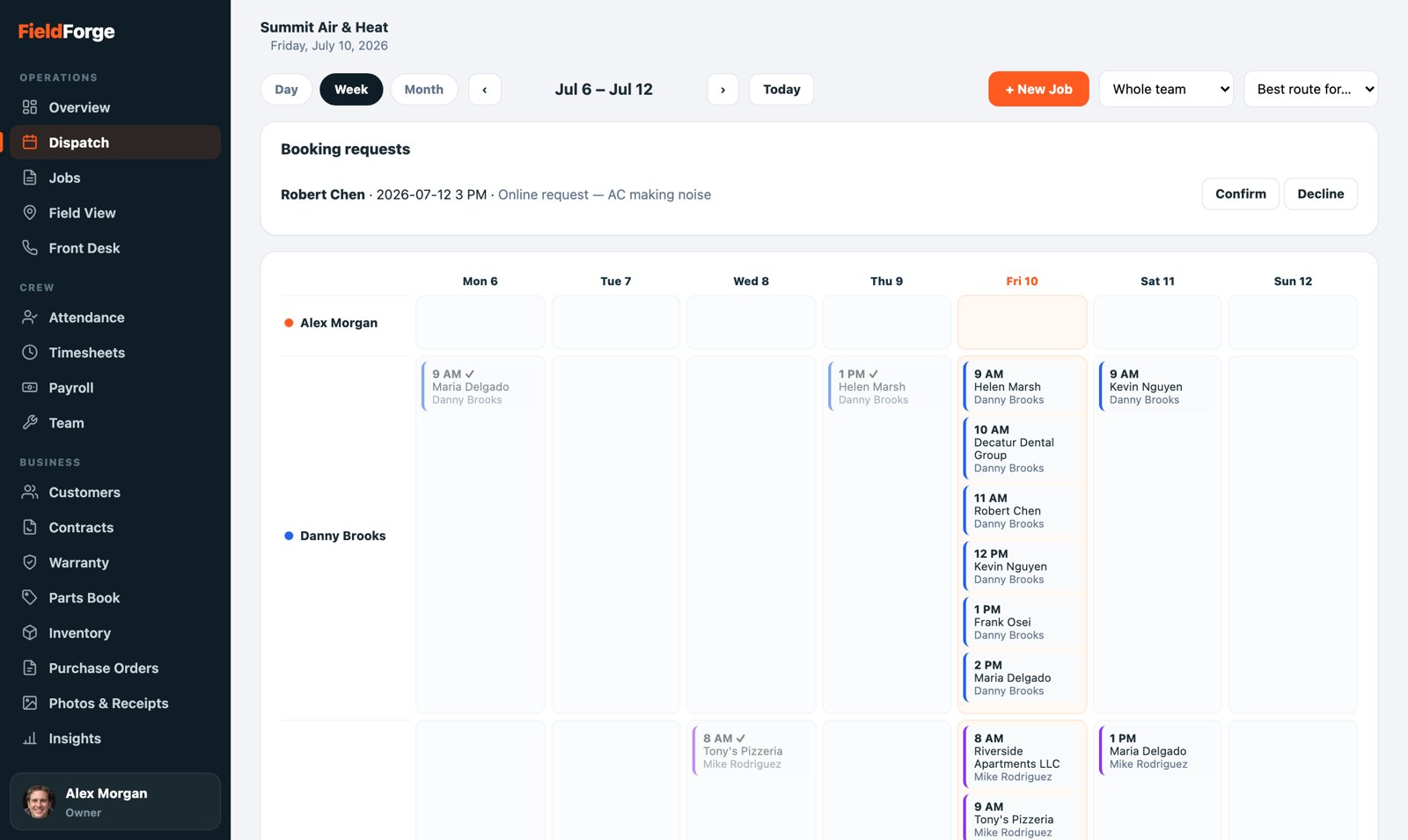
The dispatch board: the whole crew’s day in columns.
Your dispatch superpowerNotifications
Two things you send land on techs’ lock screens instantly, even when their app is closed: team messages (the “📣 Message the team” button) and job assignments you put on their schedule, with the date right in the notification. Same-day jobs also go out by SMS, since those change the tech’s day right now.
- Each phone opts in once: the “🔔 Turn on notifications” card on Home, or More → Notifications → Turn on. iPhones must use the installed Home Screen app (iOS 16.4 or newer); Android works either way.
- Turn yours on too, so team messages reach you away from the desk.
- When a tech says they got nothing: have them open More → Notifications. The status line says exactly what’s wrong (blocked, not installed, not turned on) and Send a test proves the fix in five seconds. The usual culprit is an iPhone Focus mode silencing banners.
Nobody is ever fully dark: techs without notifications still see your messages and assignments as a banner in the app, and same-day assignments also go out by SMS.
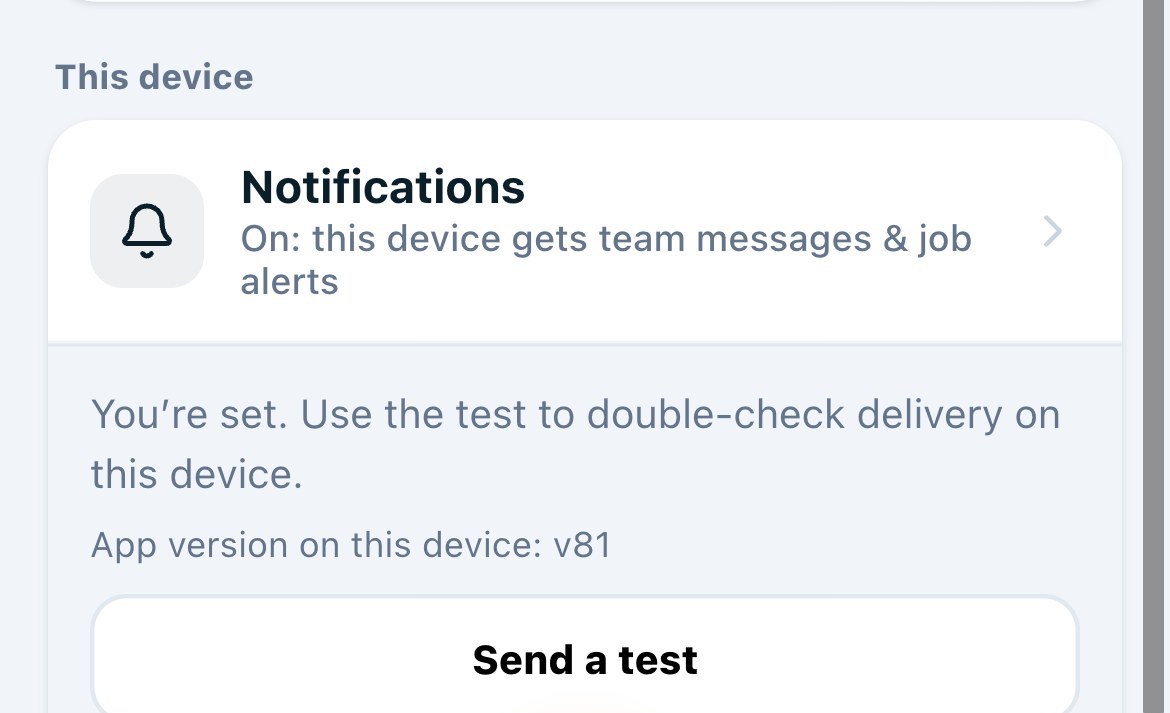
More → Notifications on any phone: status, test button, app version.
Your command surfaceThe Dispatch board
Two-man jobs: assign a lead tech and check off crew members on the same booking. The block shows on every crew member’s row (badged “crew”), counts against each tech’s capacity, and everyone gets the assignment notification. One booking, nothing to keep in sync.
- The Day board is your desk. Every tech is a row on a timeline: photo, a live GPS dot, and a capacity bar that fills as their day books up. Jobs are blocks sitting at their real times; a red line marks now, and overlapping bookings ring red so a double-booking can’t hide. When a tech taps On my way, the block turns amber (En route) and the customer is already watching a live arrival page.
- Drag to dispatch. Pull a block to any tech or time; a ghost slot shows exactly where and when it will land (15-minute snap). Moving a job to another tech keeps the customer’s appointment time; actually changing the time asks you first, because the customer is expecting the original slot. The tech is notified either way, with the date in the notification.
- Unassigned work waits on top. Online requests and jobs with nobody land in the orange lane. Drag one onto the board, or tap Suggest a tech for ranked picks with plain reasons: free all day, slots in right after their 9 AM, closest to the address.
- New job: Dispatch › New Job › start typing the customer; address and contact prefill from the record. Repeats (like a multi-day install) book as a series in one pass.
- Map this day throws the same day onto Field View; Best route for… reorders a tech’s stops for the shortest drive and re-times the day in one click.
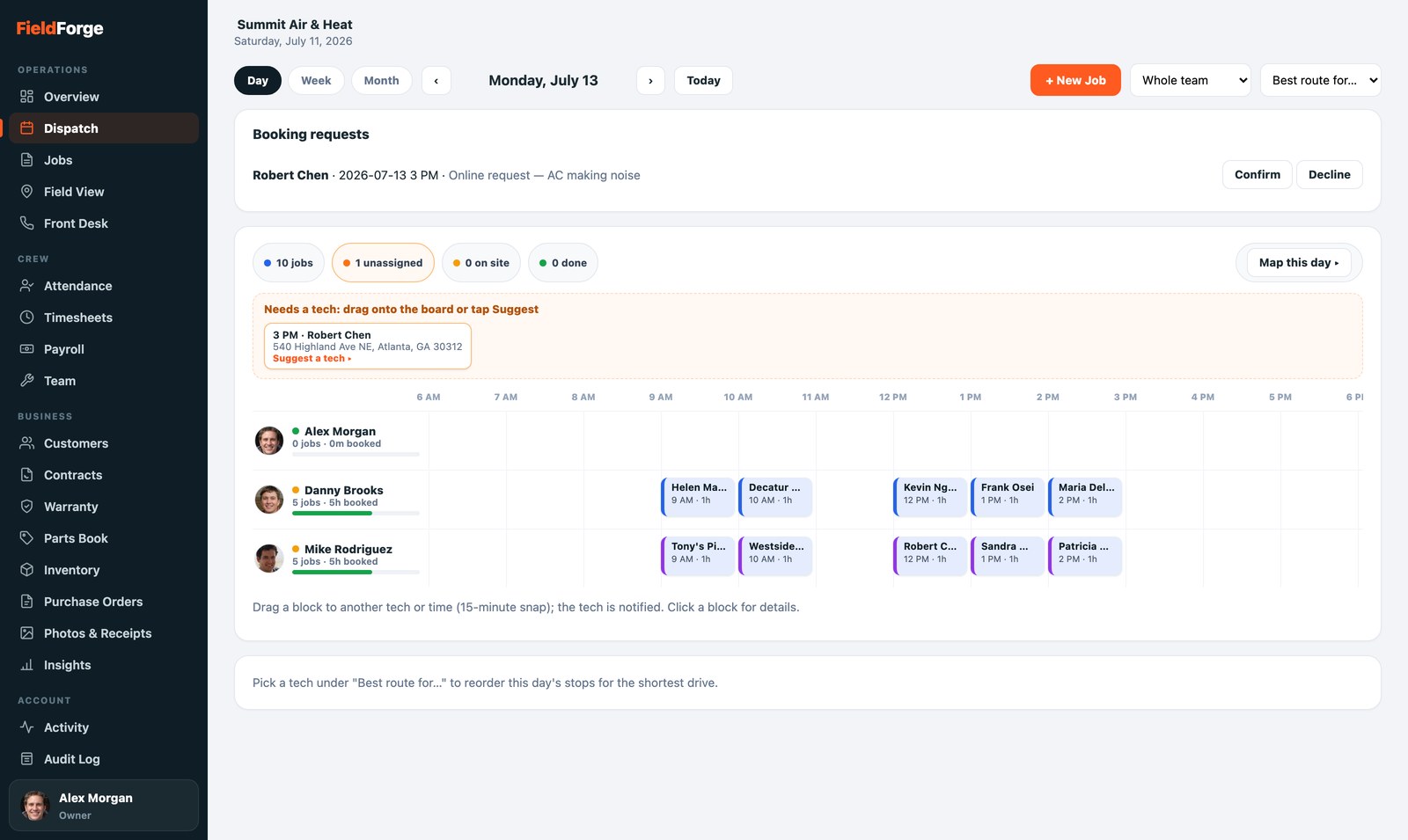
The Day board: drag blocks between techs and times; conflicts ring red, capacity bars fill.
Proof on every bookingChecklists on visits
If the shop uses Job Forms & Checklists (Settings, owner or admin can build them), each matching visit carries its checklist. You’ll see the tech’s answers, or a “required, not complete” flag, right in the booking drawer on the Dispatch board. A customer calls asking what was actually done on the tune-up? Open the booking and read the completed list to them, item by item.
The source of truthCustomers: keep the record clean
- Import any customer list by CSV (Customers › Import CSV). The mapper guesses columns; duplicates are skipped. Great for the first week after switching platforms.
- Fix names, addresses and phones freely. Voice invoices for saved customers auto-fill from what you keep clean here.
- Members wear a badge everywhere; their record shows the living contract (plan, next visit, next bill). Share any customer’s portal link in one tap when they ask “can you send me my invoices?”
- Email marketing is yours too. One-time campaigns and automatic drip sequences live under Customers › Email campaign / Drip sequences. The full playbook, with an AI writer, win-back audiences and worked examples, is in the Owner’s Guide.
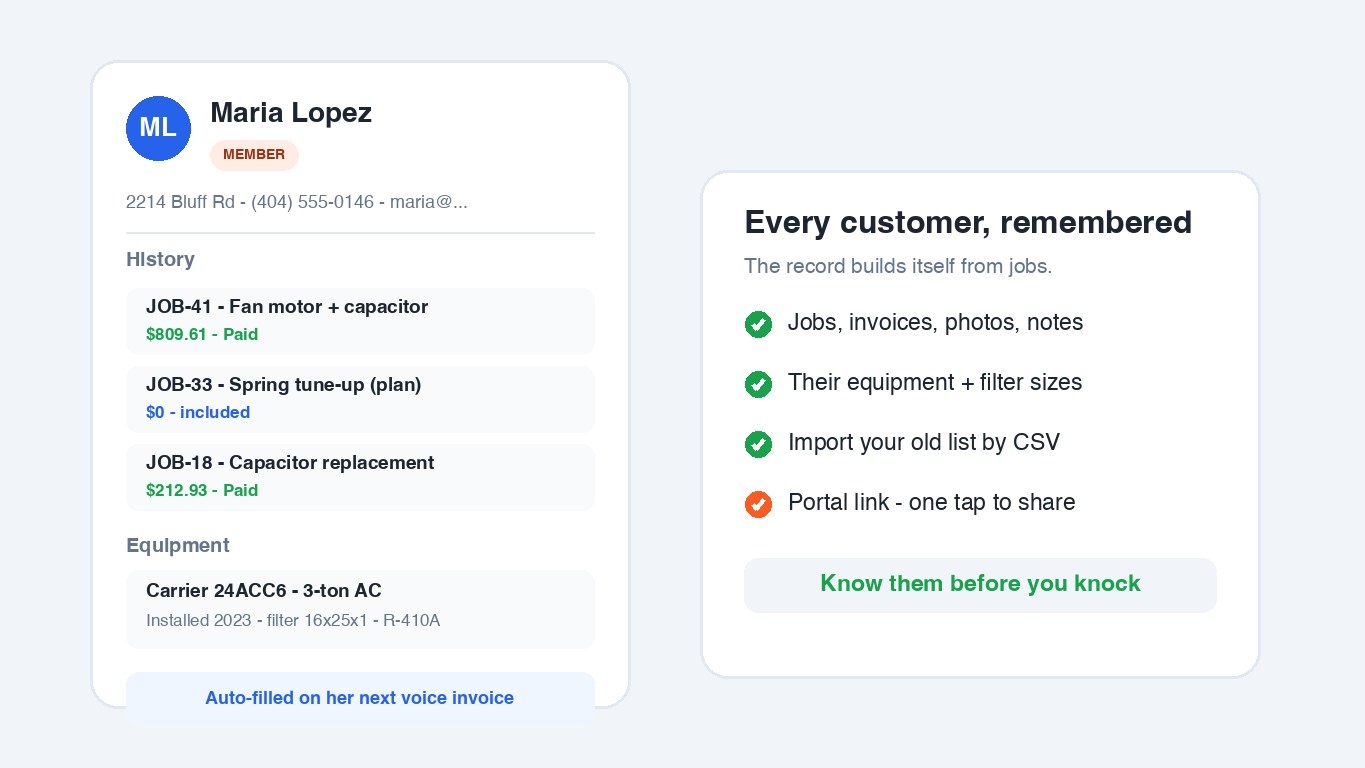
Every customer, remembered: jobs, equipment, membership, photos.
Feed the trucksStock & purchase orders
- Inventory tab: every truck plus the shop in one matrix. Red means below minimum. You also get the low-stock alert the moment a job pushes an item under its min.
- One click: “Draft restock PO” turns everything low into a purchase order with quantities filled to par and costs from the price book.
- Send it to the supply house by email or text from the PO itself. Draft advances to Ordered when it goes out.
- Receiving: when the parts arrive, mark the PO Received and pick where they land: Shop stock or straight onto a truck. Counts update instantly. Works from the phone at the counter, too.
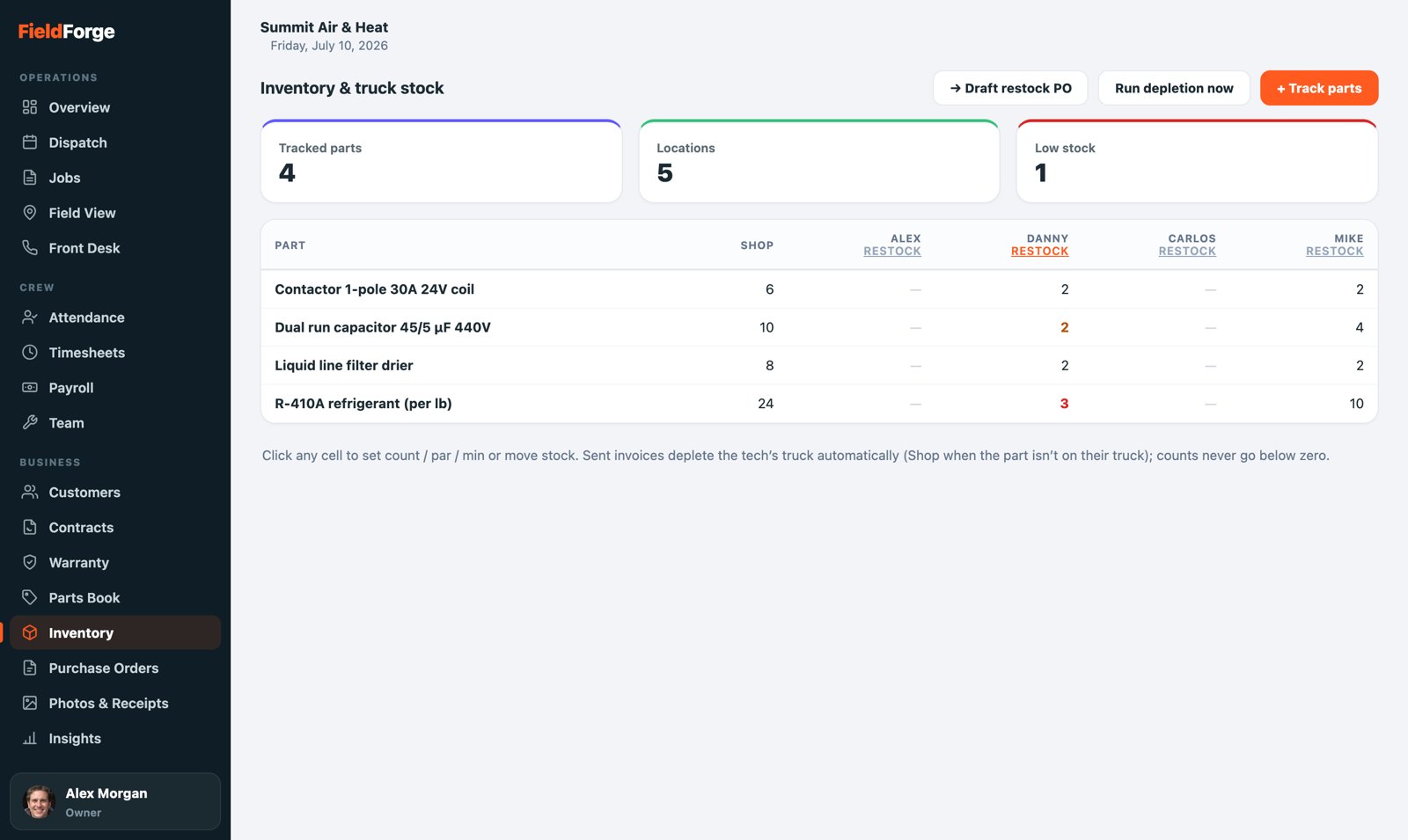
The stock matrix: every truck, every part, low items in red.
Payroll-readyHours & receipts
- Timesheets: watch the week accumulate; chase missing clock-outs the day they happen (the Live entries make them obvious), and flag anything odd with a note. You can approve entries; the owner runs the final payroll export.
- Receipts: techs’ reimbursement requests (paid-with-own-money receipts) queue with photos attached. You can approve or deny them; the approved amount joins the tech’s pay automatically.
By designWhat needs the owner
- Money settings: plan & billing, the card-payment connection, and every company settings card (deposits, fees, financing, automations) are owner-only writes.
- Pay rates: comp profiles are set by the owner. You prepare the week; the owner owns the rates.
- Admin accounts: only the owner can edit or deactivate another admin.
- Everything is journaled in the Audit Log. That’s good for you: your work is provable, permanently.