Own the dayYour morning
- Open the Dispatch tab. Overnight booking requests, from Front Desk calls and your online booking link, are waiting in the orange lane.
- Confirm each onto a tech. FieldForge ranks who fits best by distance and workload, and overlaps ring red before you double-book anyone. Same-day jobs text the tech automatically; tomorrow’s just appear on their schedule.
- Customer calls to move a time? Drag the block. The day-before reminder re-arms itself for the new slot.
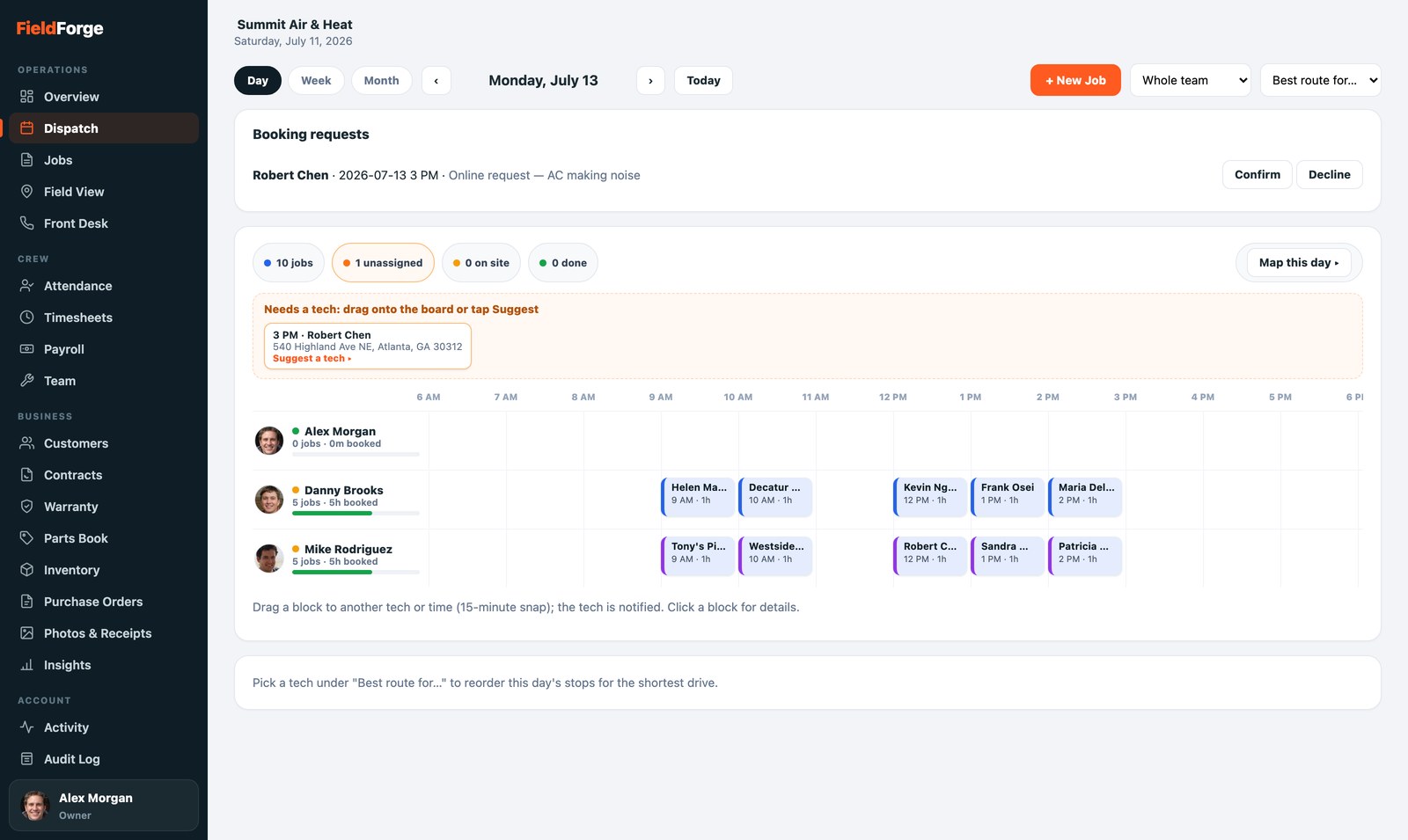
The Day board: every tech a row, jobs at their real times, conflicts in red.
Your command surfaceThe board
- Drag to dispatch. Pull a job to any tech or time; a ghost slot shows where it lands (15-minute snap). Moving a job to another tech keeps the customer’s time; changing the time asks you first. The tech is notified either way.
- Suggest a tech gives ranked picks with plain reasons: free all day, closest to the address, slots in right after their 9 AM.
- New Job: Dispatch › New Job › start typing the customer; address and contact prefill. Repeats book as a series in one pass.
- Field View puts the whole day on a live map so you can see where the trucks are when a customer asks “how much longer?”
The source of truthCustomers
- Add, edit and clean the record. Fix names, addresses and phones freely; voice invoices for saved customers auto-fill from what you keep clean here.
- Import any list by CSV (Customers › Import CSV). The mapper guesses columns and skips duplicates.
- Share a portal link in one tap when a customer asks “can you resend my invoice?” It shows their invoices, estimates and upcoming visits, no login.
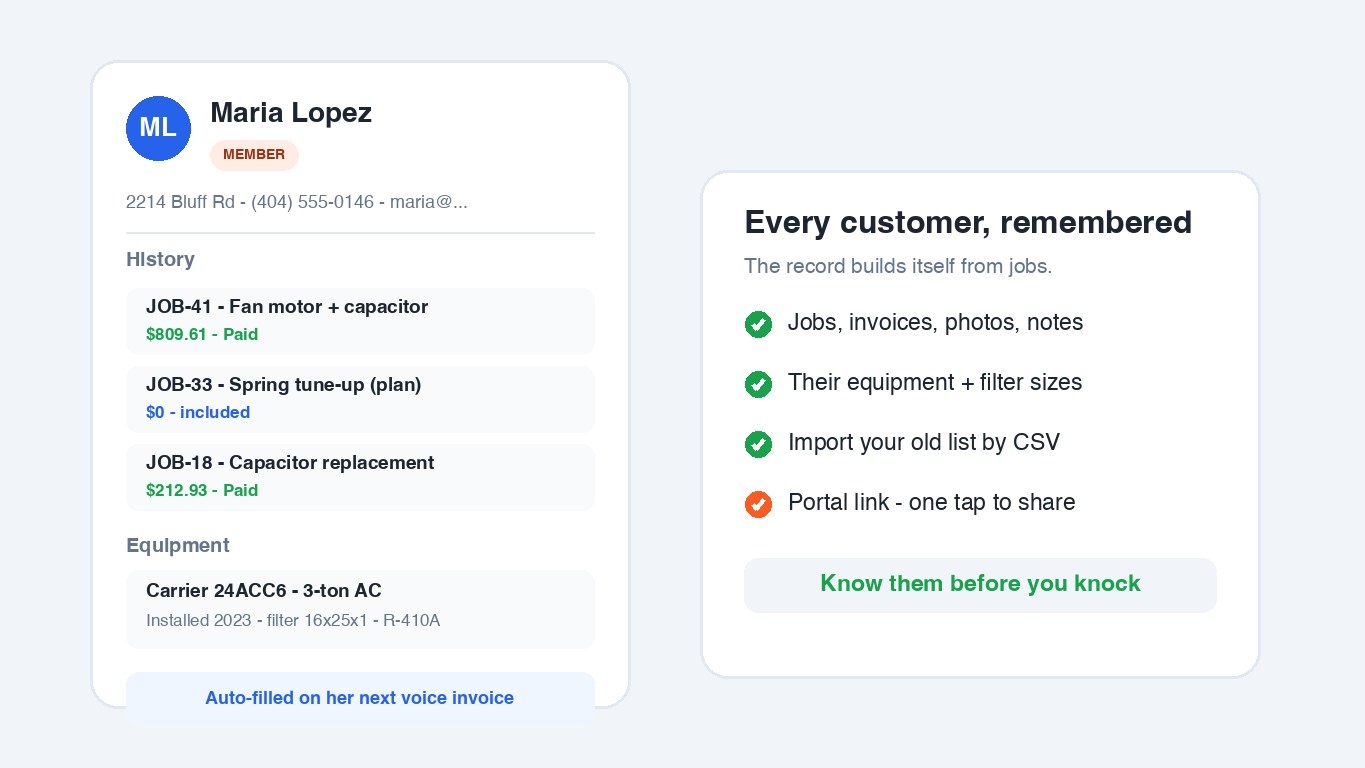
Every customer, remembered: jobs, equipment, membership, photos.
Get paidBilling a job out
You can build and send invoices and estimates yourself, no voice note required. Open a job in the Command Center to review the line items, or start a fresh estimate from a saved template. Send it by text or email and the customer gets a Pay button; when they pay by card the job marks itself Paid. You never see or set the pay rates or the company’s money settings, you just get the work out the door.
One inboxTexting customers
Customers text your FieldForge number back and it all lands in Messages, threaded by customer, on your screen and the owner’s. Reply right there, photos included. It’s the front desk’s inbox: confirm arrivals, answer “are you still coming?”, and send a quick note without giving out your personal cell.
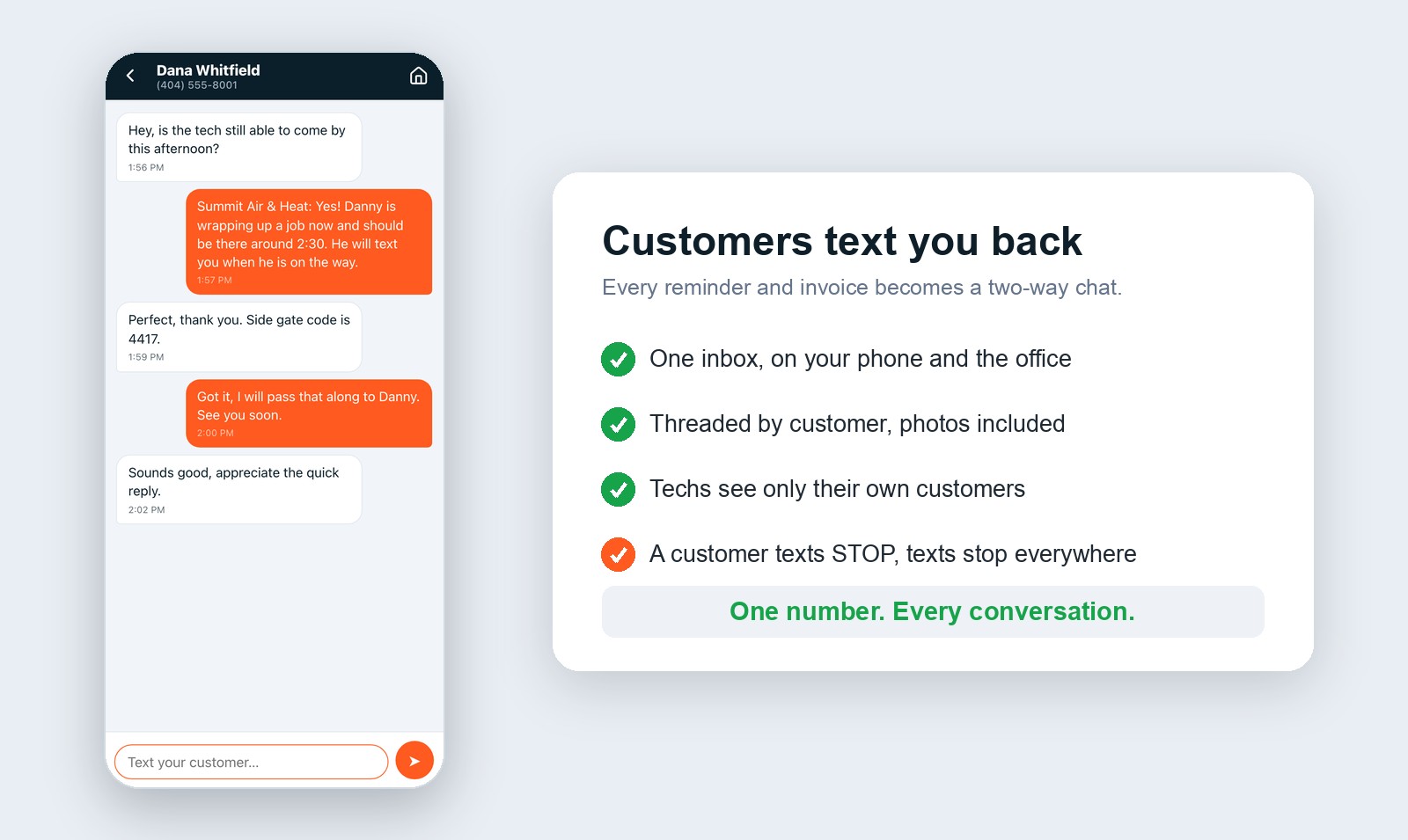
Two-way texting: one inbox, threaded by customer, photos included.
By designWhat stays with the office
- Payroll and pay rates: timesheet approvals, the payroll run and comp profiles are the owner and admin’s. You keep the schedule moving; they handle the money.
- Company settings and integrations: billing, card payments, deposits, QuickBooks/Xero and the rest are owner-only.
- The team: adding or changing team members is an owner/admin job.
- Everything you do is journaled in the Audit Log, so your work is provable, permanently.